Research workspace
The workspace starts with a conversation. Bring a task, a paper, simulation outputs, or a hypothesis. Work interactively with an agent, then prepare a bounded autonomous investigation when the question and evidence requirements are clear.
Start the browser
For a fresh Linux/WSL installation, use the one-command installer. It sets up Python and the GUI without a CLI agent.
From an existing Linux source checkout:
./scripts/launch-workspace.sh
The launcher installs the locked optional workspace dependencies with uv and opens
the local browser. Equivalent commands:
uv sync --frozen --extra workspace
uv run --extra workspace simjecture web
Use the browser on the workstation’s remote desktop if that is how you normally access the machine. Files and simulations run on the machine serving the page. The server binds to localhost. Closing the browser or web server leaves agent turns, installations and autonomous studies running independently. Stop them with their project controls before shutting down the workstation when necessary.
Choose an agent in your conversation
Use the Agent, Model, and Reasoning effort selectors on Overview or in an existing conversation:
Compatible API: optionally save a base URL and key in Connections. Back in the conversation, the model selector reads the endpoint’s model catalogue. If a provider does not expose a catalogue, select Other model and enter its exact ID. Local compatible model servers work too.
Installed CLI: the workspace detects
codex,codex-glm,grok, andagyon the server’s PATH. Select the CLI and model directly in the conversation, keeping its existing login. No API setup is needed. Local model suggestions are not a login check; the first real conversation verifies authentication and model availability.
AGY’s model choices come from agy models, not from another CLI’s saved model.
New conversations remember your last valid agent/model selection. Invalid legacy
pairs are discarded rather than offered as defaults.
Each conversation remembers its choice independently. Changing it affects subsequent
messages and new studies; in-flight turns and existing studies retain their recorded
connection. Reasoning effort is separate from the model ID: for example, choose
grok-4.7 and High, rather than typing grok-4.7 high. AGY retains its native
reasoning settings. Compatible API providers must support the selected effort value;
leave Default selected when the provider does not support it.
The built-in agent uses Hugging Face smolagents and its compatible API transport. Native CLI execution reuses Simjecture’s existing supervision adapter. Both routes can read and write project files, execute local commands, prepare study briefs, and use the same research service. These are cooperative local agents with access to the host account, as with the existing native CLI integrations.
Keys are saved in mode-0600 files under artifacts/.workspace/, outside project
folders, and never returned by the settings API. Each autonomous API study references
a separate frozen connection file so changing the default connection does not
silently change an existing study’s provider. Do not place keys in chat messages.
Your first study
On Overview, choose Find a first counterexample or type your own request.
Choose the agent and model, then press Enter or Send. This starts the conversation immediately and creates its permanent named folder automatically. Shift+Enter inserts a new line, both here and inside existing conversations. New conversation returns to this composer without a project-creation form.
Select Autonomous study and choose Grill me for focused questions, or Draft from this conversation to use existing context. The agent fills the brief, asking about consequential gaps instead of inventing missing facts. Automatic drafting uses a disclosed one-hour budget and accepts reviewed negative results unless you have specified otherwise. Ordinary Python needs no simulation plugin.
Review the agent’s proposal and press Start research. Manual fields are tucked under Review or edit the study details. The autonomous worker records experiments and submits evidence to a separate reviewer context. Codex reviewers can inspect relevant material with read-only tools. Watch progress in the project or experiment monitor.
Open the result, evidence ledger, and simulation files from the study card. Once the report is saved, the interactive agent explains it in the same conversation. This waits for any active interactive task to finish. The study card links to the explanation, and the explanation links back to the study. Budget-exhausted or stopped studies return partial findings rather than implying success.
Choose Prepare another study for a follow-up in the same conversation. Each study retains its own agreed brief, files, report and history. A launched proposal cannot accidentally be launched a second time; review a new proposal to continue.
Preparation choices disappear when a proposal is ready. After launch, the autonomous section shows the study’s progress and controls instead of the old launch form. Older studies have an Explain in conversation action to request the same handoff. Automatic explanations use the conversation’s selected agent and consume a normal agent turn. Keep the workspace server running for delivery; closing the browser is fine. If the server is stopped, pending handoffs resume when it starts again.
When the question is answered permits independently accepted support or falsification of the original claim to complete the investigation. When the claim holds, or a fixed version does keeps the existing repair loop. Uncertainty is never counted as an accepted answer. Existing CLI studies keep their original default and saved policy.
Interactive mode returns after a requested task. It can prepare an editable brief; it does not silently start an unbounded investigation. An autonomous study uses the existing minimal research core, with its evidence, method, provenance, deadline, recovery and independent-review checks. Its pause/resume/stop controls reuse the existing verified process controls. A paused study retains its original deadline.
Move between conversation, study, and evidence
The shared Conversation → Study → Evidence & review trail keeps the selected study in the page URL. Select a study by its title or Select study link; the selected card is outlined. Switching between interactive and autonomous research, reloading, or returning from its evidence page preserves that selection. A newly launched study becomes the selected one. Links without a study choose the latest study in that conversation.
Evidence & review opens the existing detailed study view with its graph, experiment console, independent reviews, artifacts, and advanced controls. Back to this conversation returns to the actual owning conversation. The Study breadcrumb returns to its selected card. Browser Back/Forward also restores monitor campaign choices.
Conversation-side Simulations are exploration results. Recorded experiments and completed processes do not by themselves establish scientific acceptance; read the independent reviews and the scope of the accepted finding.
In the right-hand workspace, Simulations and Commands each have a scrollable history above the selected run. Its console and files scroll separately below, so a long history does not push the run out of view. The tabs stay visible, and live refreshes preserve your reading position.
Selecting a simulation shows Run outputs from its own workspace. Copied inputs is a separate, collapsed section: the launch snapshot can contain shared reports or results from earlier runs, which are not outputs of the selected run. New runs record input hashes, so a changed input file appears with the run outputs. Older runs have only the recorded input paths; edits to those paths cannot be distinguished retrospectively. The Files tab contains shared inputs, reports and comparisons for the conversation. Commands work in that shared folder, so their files are explicitly labelled shared rather than attributed to one command.
Continuing a study from its detailed view prepares the next phase in the owning conversation, after you submit the continuation dialog. Cancel or Escape before submission leaves the record unchanged. A busy conversation or existing unlaunched proposal must be resolved first; it is not silently replaced. A directly opened CLI study without a workspace owner remains standalone and creates a conversation only when a continuation is submitted.
Permanent files, arranged by project
For optional conversation collections and separate local lab environments, see
Projects and workspaces. You can continue
using a single conversation without setting either up. The folders below retain
their historical projects/ name and each represent one conversation.
Project and study folders use names you can recognize:
artifacts/
  projects/
    2026-09-26-reconnection-onset/
      README.md                   # Links to the project's work
      CONVERSATION.md              # Readable saved discussion
      project.json                # Project metadata and study references
      files/                      # Uploads and interactive agent outputs
      simulations/
        001-wave-decay/
          output.log              # Live console, retained after completion
          workspace/              # Input snapshot and simulation outputs
          request.json            # Command, deadline, and source conversation turn
          state.json              # Completion or interruption status
      turns/                      # Detailed conversation/activity records
      studies/
        001-test-inflow-averaging/
          project-brief.json      # The agreed brief for this study
          RESULTS_INDEX.md        # Human-readable simulation/output navigation
          STUDY_LEDGER.md         # Host-maintained evidence record
          research_report.json
          research/
            project_inputs/       # Snapshot of the project's inputs at launch
            RESULTS.md            # Agent's scientific narrative, when written
          experiments/            # Immutable receipts, source snapshots and outputs
Nothing in this project lifecycle is stored in an automatically removed temporary directory. Internal experiment receipts retain their stable IDs for reproducibility; the browser and results index group outputs by experiment number and name. Failed and interrupted work remains available. Raw numerical sandbox commissioning probes may use the existing installer’s temporary directories; they are not your study results.
Browser uploads support files up to 20 MB. For larger datasets, copy them to the
project’s displayed files/ path. Launch currently snapshots up to 512 MB of project
inputs; the research service’s existing separate experiment storage limits still apply.
Tool installations are shared on the machine; a project’s inputs and study outputs
belong to that project.
Local knowledge library
Open Knowledge in the sidebar to search connected research folders, completed
workspace conversations and study reports. Use Connect folder with an absolute
path on the machine running Simjecture, such as /home/you/research. An optional
name and exclusion patterns help keep generated files out of the library.
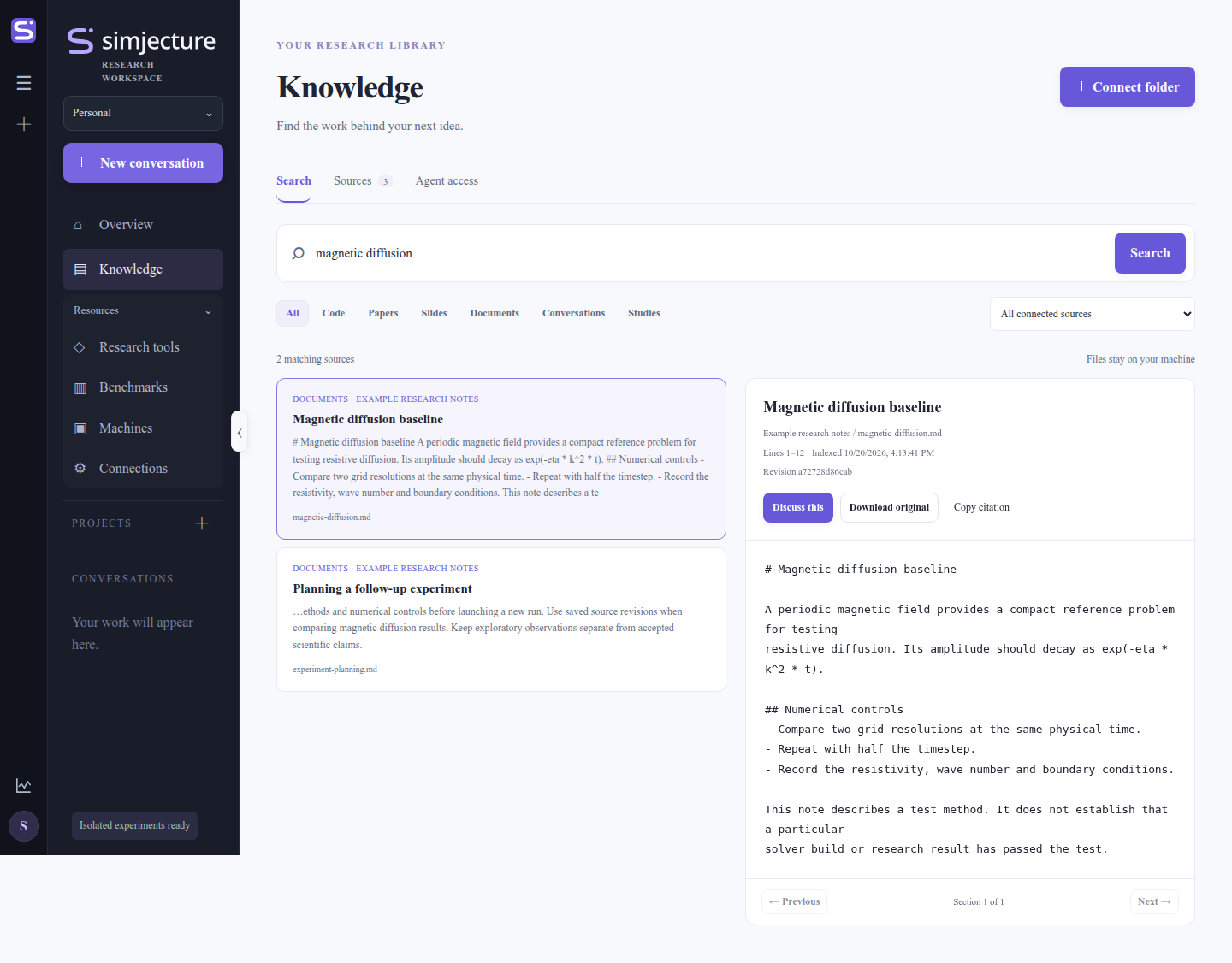
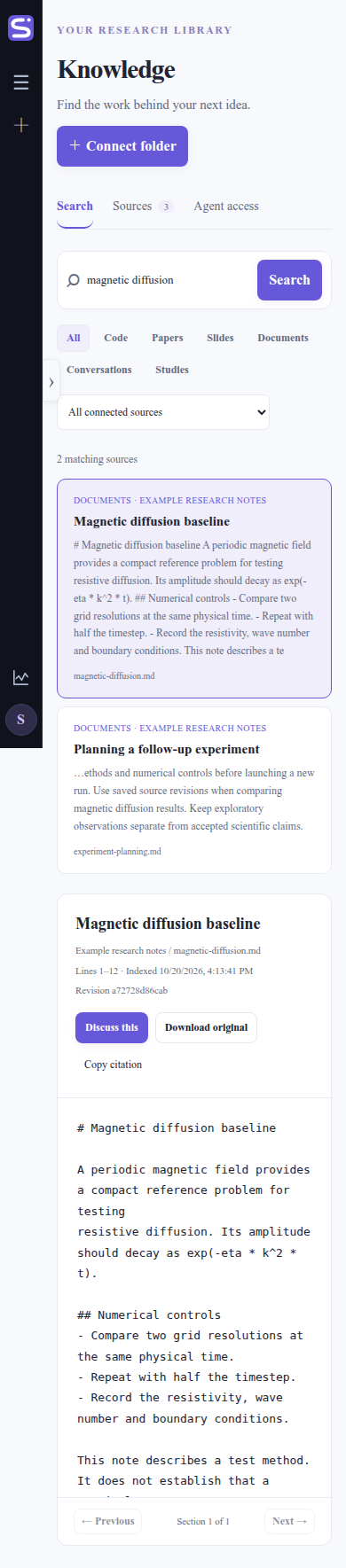
The same controls work in a narrow browser layout. These screenshots use sample research notes.
The first version uses local full-text ranking over titles, paths and passages,
including Chinese search terms. It needs no embedding model or inference API.
It reads text and code, notebooks without their outputs, PDF text by page, PPTX
text and speaker notes by slide, and DOCX paragraphs. Install the workspace
extra for the complete interface, or knowledge for standalone extraction and MCP:
uv sync --extra workspace
# Standalone knowledge tools:
uv sync --extra knowledge
Search supports content-type and source filters. Select a result to preview its source section and version, move between sections, download the unchanged original, or copy a citation. Discuss this prepares a new conversation with the selected passage attached. Use in conversation attaches it to the conversation you most recently opened. Neither action sends a message or spends provider credit. Edit the draft and send when ready.
The Knowledge sources control beside each composer defaults to all enabled
sources in that workspace. Select a subset or select none. The server applies
this selection to the built-in agent’s knowledge_search and knowledge_read
tools and to CLI calls scoped with --conversation. Native CLI agents receive
instructions for the same command-line tools. This controls knowledge retrieval;
trusted local agents may still have independent operating-system file access.
Sources displays counts, last-check times, progress and extraction errors. The local web server reconciles enabled sources every minute and after restart. Refresh now queues an immediate check. Changes are processed incrementally; deleted files leave current search and uniquely identifiable renamed files keep their identity. An unavailable directory retains its last indexed content with an unavailable status. Shared folder registrations and their index are reused when the same path and exclusion patterns are connected to another workspace; different exclusions use separate indexes, while connections and enabled state are workspace-specific. Disconnecting a folder removes that workspace’s access without deleting original files.
Sources are reference context, not accepted scientific evidence. Each read
exposes a revision and an exact section citation. Agent reads during interactive
turns and manually attached passages are preserved under the turn’s
knowledge-context/. The most recent 32 distinct preparation passages from
currently allowed sources are copied to an autonomous study’s
research/project_context/knowledge/references.json. Editing a connected file
does not rewrite these records. Deleting a conversation removes its derived
conversation and study-search records as well.
The index lives in artifacts/.knowledge/index.sqlite; it is local user data.
Extracted versions are retained for existing citations. Conversation ingestion
uses completed public result events, not provider reasoning or private transport
history. Hosted public trials do not expose this local-folder interface.
Current limits: 20,000 eligible files per folder; 2 MiB per text/code file and 64 MiB per PDF/Office file; 500,000 extracted characters and 400 pages/slides per document. Truncation and extraction failures appear under Sources. Hidden directories, dependency/build folders, symbolic links and common credential filenames are skipped. Raw arrays, binary checkpoints and images are not indexed. Scanned PDFs need an existing text layer; diagram understanding, OCR and semantic embedding search are not included in this first version.
Use Agent access to copy a workspace-specific MCP configuration or CLI
command. MCP exposes read-only knowledge_search, knowledge_read, and
knowledge_status tools over stdio; it does not start a campaign or grant source
registration access. Run it on the same machine as the sources:
simjecture knowledge --runs-root artifacts --workspace personal status
simjecture knowledge --runs-root artifacts add /home/you/research
simjecture knowledge --runs-root artifacts sync
simjecture knowledge --runs-root artifacts search "magnetic diffusion"
simjecture knowledge --runs-root artifacts read DOCUMENT_ID --revision REVISION --chunk 0
simjecture knowledge --runs-root artifacts --workspace personal mcp
CLI and MCP reads work with the browser closed. Run sync to refresh while the
web server is stopped. Local indexing does not upload sources; when a configured
hosted agent reads a passage, that passage becomes part of its provider context.
Research tools
The catalogue has a search bar, category filter, and All tools, Installed, and Available to add filters. Search matches names, descriptions, categories, and application or preset names, including connected tools. Click anywhere on a card to open its description and available actions. Keyboard users can focus a card’s Explore tool button and press Enter; Escape closes the details dialog. Build variants, paths, setup diagnostics and logs stay in that dialog, so opening them does not stretch neighboring cards. Filters and open logs survive background refreshes.
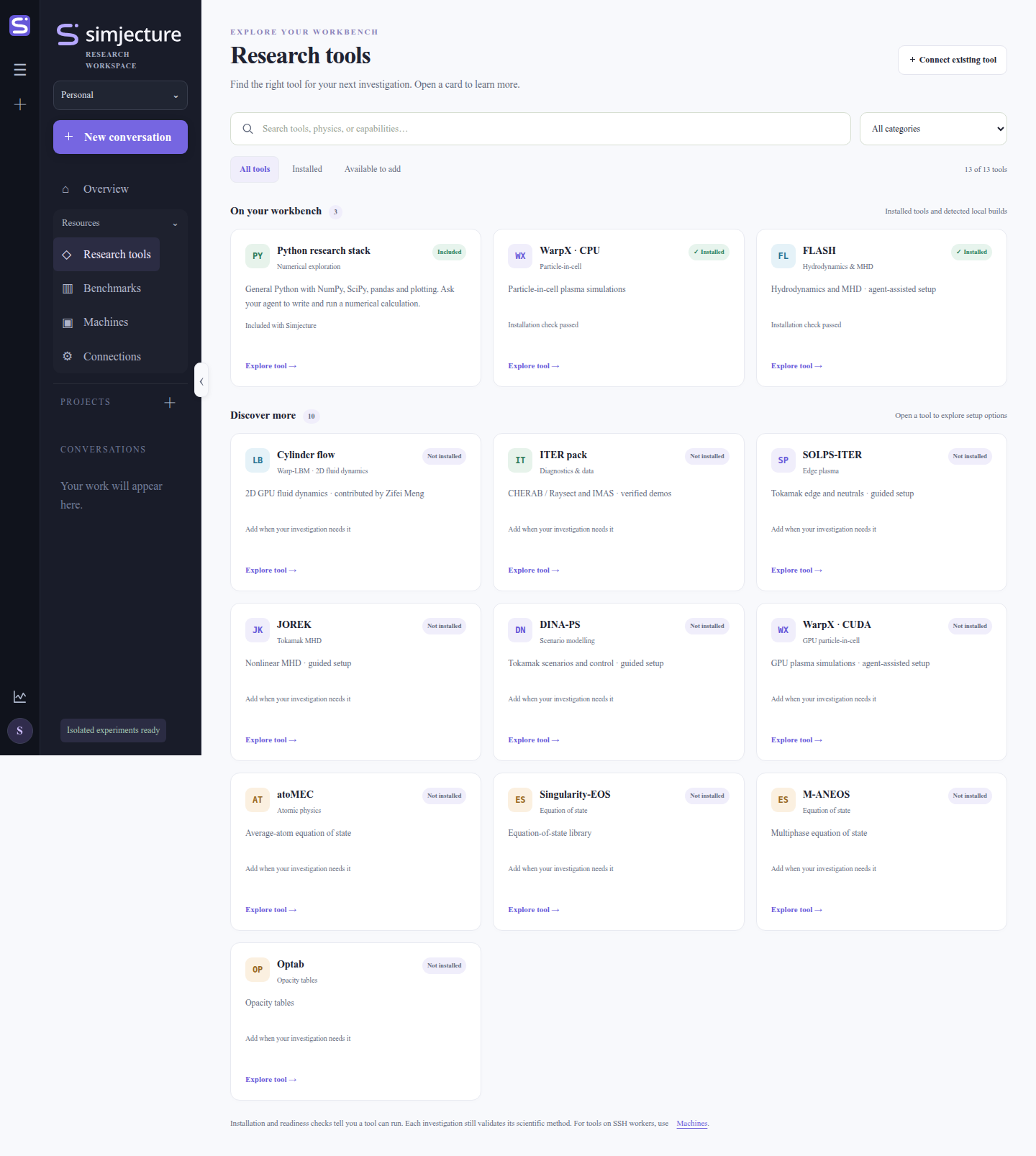
Hosted workspaces show the collection provided by the server administrator, with installation and registration controls hidden. Open a card to choose an available starter preset or prepare a custom study when the host permits it. Read-only local workspaces still allow browsing and searching, with setup actions disabled.
A Detected local build is present but still needs a registered capability to participate in recorded studies. An unavailable optional managed runtime is shown in its scoped setup diagnostics; it does not imply that detected local builds are missing. Connect existing tool opens the registration form. Install, readiness-check, demonstration and agent-assisted setup actions are in the tool’s details dialog and retain their existing behavior.
The catalogue reuses simjecture install and simjecture doctor implementations.
On your workbench and Discover more are separate sections. Installed instruments
also show whether a readiness check has passed, failed, or has not yet been run.
WarpX CPU, EOS and opacity tools have installer buttons. Existing capability descriptors
in the checkout’s capabilities/, .private/*/capabilities*/, runtime capability
directories and the configured capability directory are discovered automatically.
Installed FLASH applications are shown with their own names, versions and runtime paths;
they are not relabelled as the bundled island-coalescence application. You do not need
to supply source again for these installations. Readiness checks use the detected
application’s descriptor. Install with agent opens a prepared setup conversation
for FLASH and WarpX CUDA. Choose the agent/model and send the editable request; it
points the agent to the bundled deployment skills and asks it to handle prerequisites,
build configuration, compilation, readiness checks and registration. The agent asks
for the intended application/geometry and any required source, rather than requiring
the user to supply build environment variables. Installation jobs continue in the background and expose
their reports and logs. The catalogue also detects configured executable installations.
You can ask your project agent to install other software and register its Simjecture capability directory. Registered instruments appear in the catalogue and study selector. An installation check means the tool can run; it is not scientific qualification for a particular experiment. Required commissioning and independent methods review remain part of the autonomous research core.
Development validation
uv run --extra workspace pytest tests/test_workspace.py
# Optional full browser acceptance test:
uv pip install playwright
uv run --extra workspace python -m playwright install chromium
.venv/bin/pytest tests/test_workspace_browser.py
The integration tests use a deterministic compatible API server. They exercise the real agent SDK, file operations, study launch, numerical execution and reviewer transport; they are not a benchmark of any provider’s scientific reasoning. Existing CLI transport is also tested with a deterministic executable. Enter your own connection in the browser to evaluate a real research task.
Linked conversations and interactive simulations
Chat responses can link directly to their proposed autonomous study and simulation
runs. These links also work after a reload. Opening a simulation keeps you in
interactive research and opens the resizable side inspector, with live output,
status, saved figures, and a stop button. Explicit simulation runs keep their own
input snapshot and outputs; ordinary agent shell commands work in the conversation’s
shared files/ folder. Closing the browser does not stop detached simulations.
Native CLI commands appear when their CLI emits public command events; managed runs
launched through the supplied simulation tool support individual cancellation.
Responses render inline and display LaTeX ($...$, $$...$$, \(...\), \[...\]),
fenced code with syntax highlighting and Copy, and saved PNG, JPEG, GIF, WebP or SVG
figures. Agents can embed  from conversation files or
 from a run. Figure clicks open
the saved image. Activity labels distinguish connecting, thinking, using tools and
writing a response when the provider or CLI reports those states. They do not expose
private reasoning or invent progress percentages.
WarpX discovery also checks sibling source builds and registered Conda environments, using CMake’s compute setting to identify CPU and GPU executables. These appear as installed even if they do not yet have a registered research capability. Their paths are available for interactive work; autonomous evidence workflows still require the appropriate capability registration and commissioning.
Frontend components
The workspace uses locally vendored Web Awesome
3.14.0 split panels, tabs and activity indicators, plus highlight.js 11.11.1,
KaTeX, marked and DOMPurify. It does not need a CDN at runtime. Licenses are kept
alongside the assets. scripts/vendor_workspace.py rebuilds the Web Awesome and
highlight.js bundle from pinned npm archives with SHA-512 integrity checks; the
selected versions are recorded in static/vendor/workspace-vendors.json.
Appearance and conversation deletion
Use Dark mode / Light mode in the top bar to switch appearance. The first visit follows your system preference; an explicit choice is remembered in this browser.
Each conversation in the sidebar has a delete button. Its confirmation shows the folder that will be permanently removed, including uploads, interactive simulations and autonomous studies. Cancel leaves everything intact. Active agents, simulations or study workers must stop before deletion. Shared software installations and API settings remain; private connection snapshots belonging to the deleted conversation are removed with it.
Research skills in browser agents
Interactive and autonomous workers receive the shipped scientific skill catalogue,
including FLASH MHD, WarpX and Python experiments. Native CLI agents receive absolute
SKILL.md paths; the built-in API worker also exposes read_skill(name, path) for
skill instructions, references and examples. Skills describe operation and evidence
requirements; their presence does not mean the corresponding runtime is installed.
Use the actual installed capability and keep demonstrations distinct from independently
reviewed research. Existing running turns keep their original prompt; the catalogue
is supplied on new turns.
Conversation continuity
Native worker session IDs are retained per conversation and connection/model route. Grok and Codex transports resume the saved ID; AGY resumes when it reports a conversation ID. Built-in API workers retain structured message/tool history. A different connection or model starts a fresh transport context with conversation text carried forward. Independent reviewers always use fresh contexts. Provider prompt-cache reuse is separate from session identity and is not guaranteed by Simjecture.
Interactive agent turns have no default total time limit. Stop them from the composer. The response shows current public activity, recent tool operations, elapsed time, the last activity time and the number of monitored simulation jobs. Agents can share concise progress updates at milestones. Private reasoning is never displayed. No recent stream activity means no new activity was observed; it is not a fabricated completion estimate. Managed simulations keep their own explicit deadlines, and autonomous studies retain the budget chosen in the study brief. A transport error or stopped agent is distinguished from a solver failure; saved files and job statuses remain available.